Expanding Space

Back

Player Movement

I started by creating the player movement in first-person. The goal was to make the player able to move around smoothly in a 3D space.

However, I encountered an issue where the movement stopped working correctly with the camera rotation. The player’s movement direction wasn’t aligning with the camera’s orientation, causing confusion in controls.

To solve this, I adjusted the movement logic to account for the camera’s rotation. This ensured that the player’s movement would always follow the direction the camera was facing, providing a more intuitive control scheme.
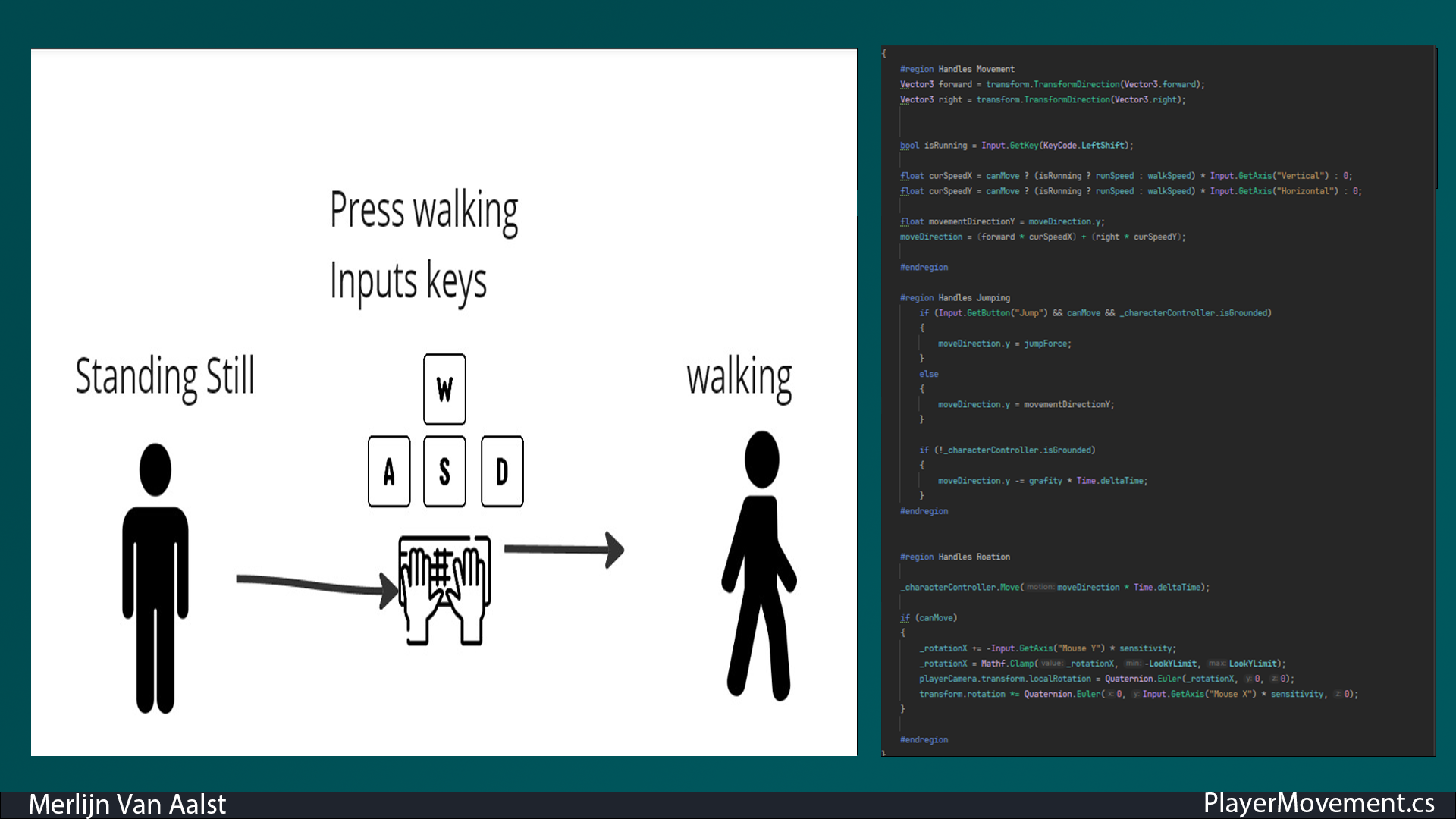
Movement Image 1

Interaction System

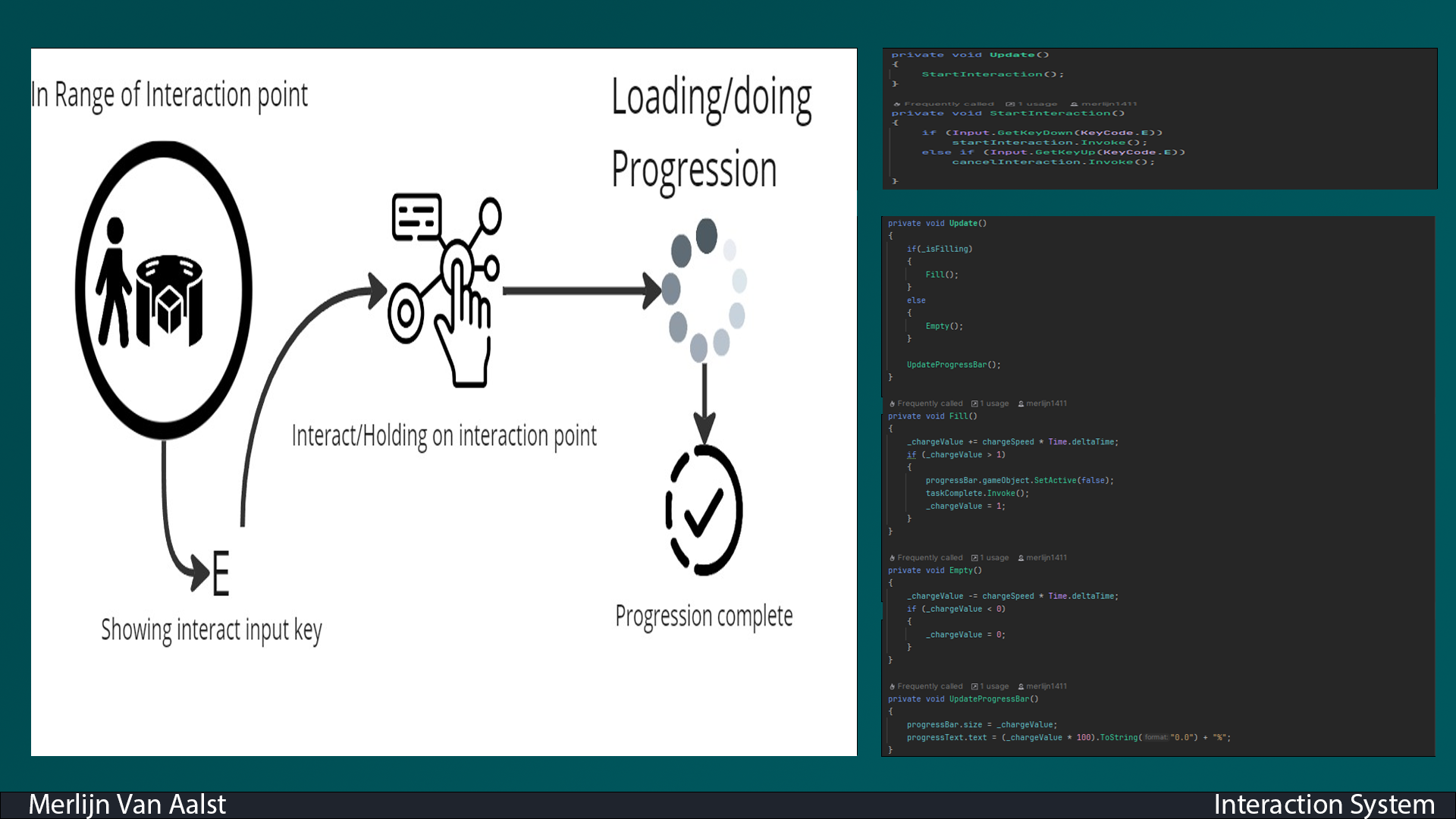
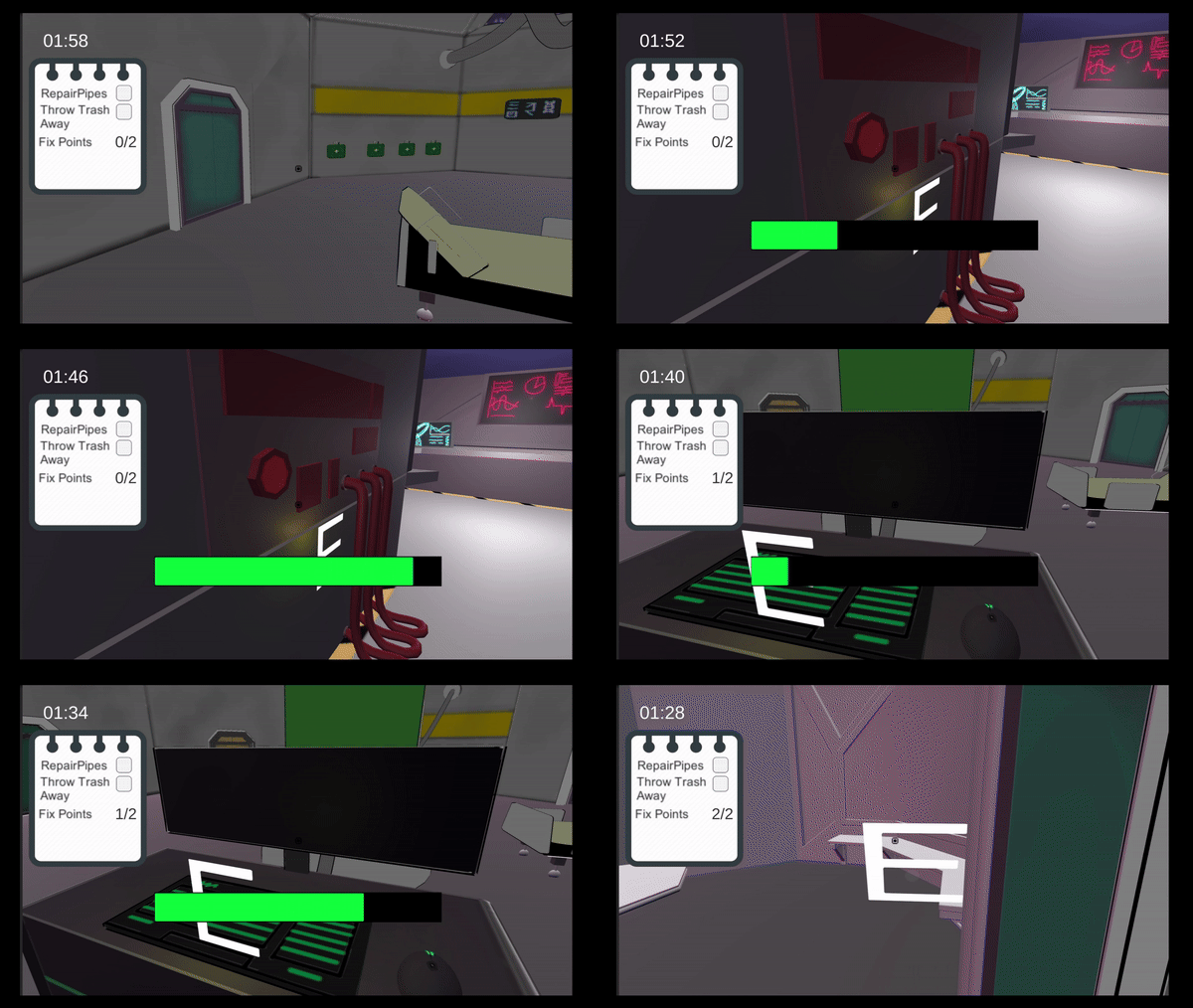
Next, I developed the interaction system, which shows an icon when you can interact with an object, displaying the button to press. When the interaction begins, a progress bar appears and fills up. Once the interaction is complete, the bar disappears, and the object can no longer be interacted with.

The system also includes a click interaction, where pressing the button automatically triggers the mini-game. This adds an extra layer of functionality for seamless user interaction.

The interaction system is made up of several scripts: HoldInteraction, InteractionRadius, InteractionRotation, and InteractionStatus, each handling a specific part of the system’s functionality.

Task Manager

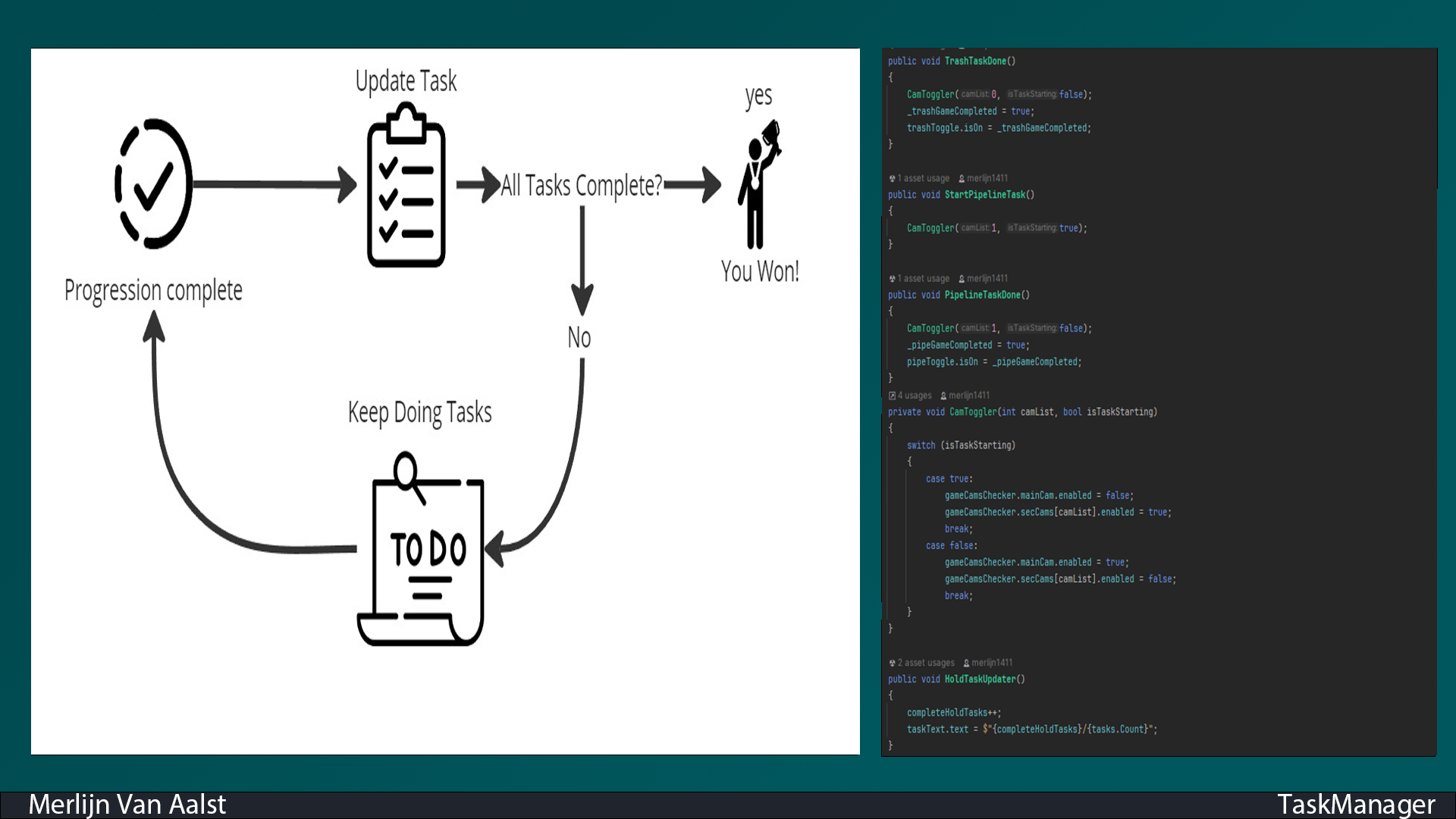
Next, I created the Task Manager script. The purpose of this script was to manage and update a custom task list.

Each time a mini-game was completed, the Task Manager would add the completed task to the list, tracking the player's progress. This helped ensure that the system could dynamically reflect the player’s achievements.

The script helped maintain an organized structure for the tasks and provided a clear overview of the player’s completed objectives.

Project Image 1

Interaction Radius

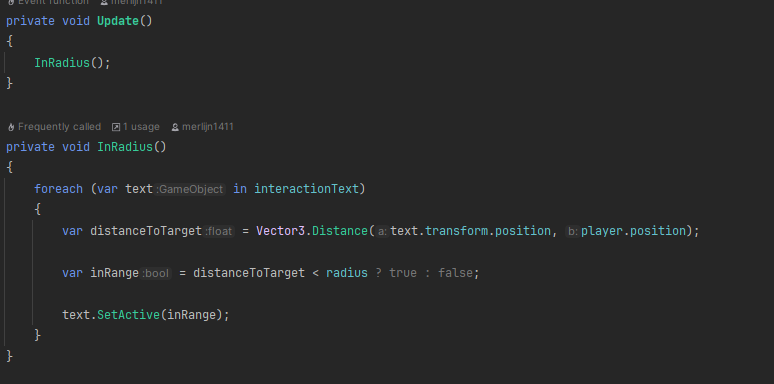
The InteractionRadius script manages a list of interaction points and determines how close the player needs to be for the interaction icon to appear. This ensures that the player is within the required range to interact with objects seamlessly.

The problem I encountered was that after completing a mini-game, the interaction system would throw multiple errors. This disrupted the gameplay and indicated an issue with how interactions were being handled post-completion.

I discovered that the issue occurred because I hadn’t removed the interaction from the list. Once I updated the method to properly remove the completed interaction, the errors were resolved, and the interaction point was correctly destroyed.

Cams Checker

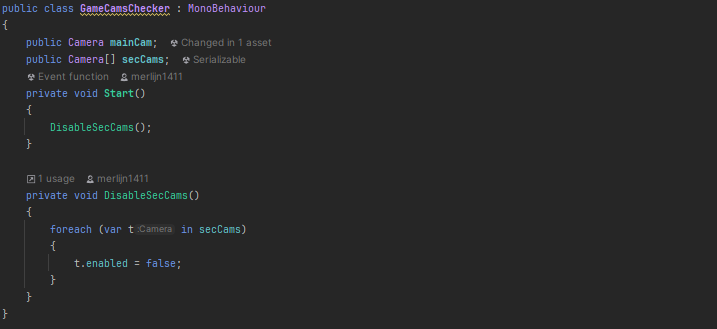
I also developed the Game Cams Checker script to handle camera switching during mini-games. Since different mini-games required different camera angles, this script automatically activated the appropriate camera linked to the mini-game.

When a mini-game started, it would disable the player’s camera and switch to the mini-game’s camera view.

Once the mini-game was completed, the script would automatically switch back to the normal player camera, ensuring a seamless transition between gameplay and mini-games.